 Apple
Apple
Can you imagine how many iPads currently exist in the world? Apple's iPad is a multi-billion-dollar earner for the company, and people all over the world own one. In fact, more than 40% of people in the U.S. owned an iPad as of 2024. Whether you're looking at the merits of the 10th Gen iPad versus the iPad 11, or are hanging on to an older iPad Mini, there are plenty of perks to using an iPad for everything from daily life to entertainment to gaming.
And while seniors aged 65 and older make up the smallest group of iPad owners, that doesn't mean Apple has neglected this segment of the market. Plenty of built-in settings on the iPad lend themselves to creating a better experience for seniors, if you know where to look. Although you might want to wait for the best time to buy a new iPad, owning an Apple tablet is one way for seniors to stay connected and access entertainment. Note: While we've included screenshots of various iPad settings, your iPad's menus may look different depending on the model and iPadOS version.
Change the text size
 Erynn Ruiz/SlashGear
Though not every senior has vision problems, one agency on aging reported that more than 6% of adults over 65 had "significant vision loss." For those aged 80 or older, the figure jumped to 9.8% reporting vision problems. Because vision issues are common among older adults, adjusting the text size might be the very first step in making an iPad or iPhone more senior-friendly.
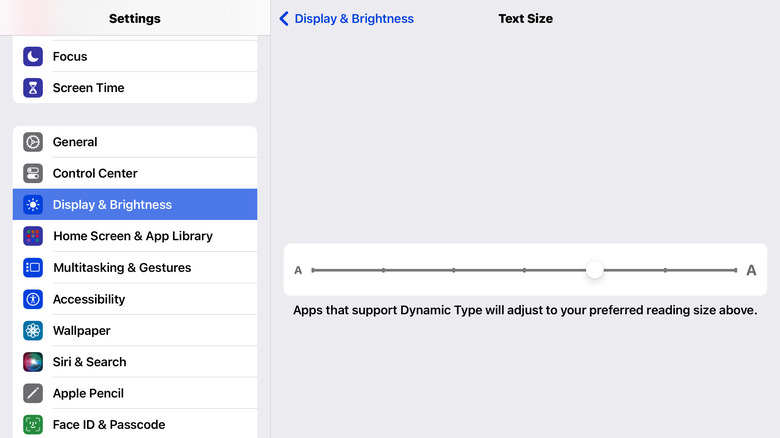
Changing the text size is a quick way to make everything on an iPad, from the menus to messages, more visible. There are two ways to change the text size on an iPad. One is through the Display & Brightness menu in the device Settings, where you can select Text size and toggle it up or down.
Another way to adjust text size is via Accessibility under Settings. The Display & Text Size section lets you toggle additional accessibility sizes beyond the standard setting's limits in apps that support Dynamic Type.
Adjust the notification settings
 Yudi Angga Kristanu/Shutterstock
Because vision issues can affect older folks, changing the iPad notification settings could help avoid missed messages or important reminders. Adjusting the settings may also help avoid distractions or unwanted downloads, especially for seniors who enjoy playing online games or using a variety of different apps.
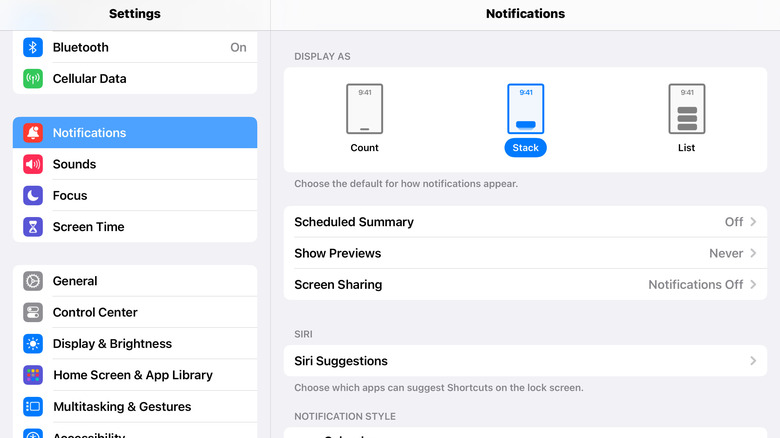
To change the device's notification settings, select Settings and then Notifications. You can choose how the notifications display in terms of count, stack, or list, plus allow or prevent previews from popping up. There's also a scheduled summary option if you want notifications at a set time.
Another way to use iPad settings for seniors is by turning on sound recognition and LED flash alerts. These are two very different functions that can help keep seniors safe and ensure they don't miss important alerts. For example, toggling on Sound Recognition (under Settings > Accessibility) allows the iPad to "listen" for ambient sounds — like a smoke alarm — and alert you if it detects them.
Increase the contrast
 Erynn Ruiz/SlashGear
While text size is one aspect of making an iPad more user-friendly for those with low vision, contrast is another important factor. Under Settings, then Accessibility, you'll find options under Display & Text size. Toggling Increase Contrast has an immediate visual effect in a way that many iPad users might not consider. The contrast helps illustrate where buttons or toggles are on the screen, and even enhances things like the icons in menus.
Along with contrast are some other options like Differentiate Without Color, which avoids situations where color vision is needed to use an app, and color filters. Color filters can be helpful for people with low vision and specific vision conditions such as colorblindness.
Finally, under the Display & Text Size menu, you might want to toggle off Auto-Brightness. For some seniors, it can feel a bit disorienting to have the iPad decide when it's time to increase or decrease brightness. However, if battery life is a concern, it might make sense to leave this toggle on to conserve energy in low light.
Choose reduced motion
 Apple
Apple
One practically hidden setting you might not know about is the ability to change how your iPad handles motion. Under Settings and Accessibility, you'll find a toggle to Reduce Motion. Apple explains that turning this on helps reduce the motion of the user interface. In short, reducing motion is meant to make for a more seamless visual experience. Especially with the Liquid Glass element in iPadOS 26, there can be a lot more motion in the interface, depending on what apps and features you use.
Other options on the same menu also help reduce motion that could be jarring or even annoying for seniors. For example, turning off the toggle for Auto-Play Animated Images means you won't see moving images while surfing the web or while using apps. That means GIFs won't play automatically in your messages, and browsing the Web might not be so visually demanding with images moving around all the time.
Other ways to reduce motion effects include turning off video previews (so apps like the App Store won't automatically show video demos) and even limiting the iPad's frame rate.
Use the zoom function
 Erynn Ruiz/SlashGear
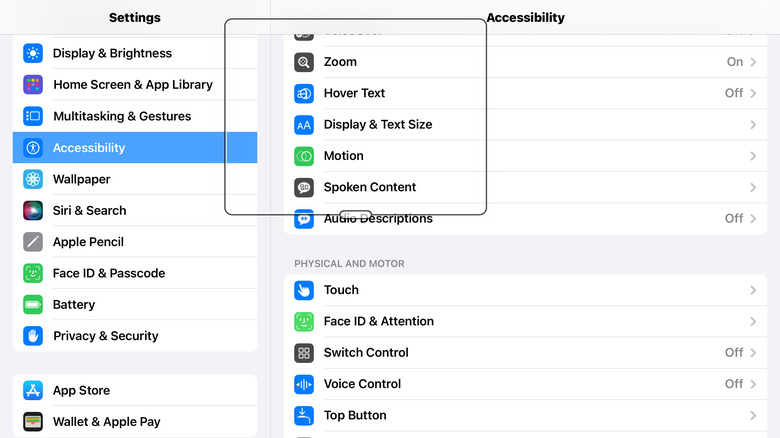
For seniors who have vision challenges or just dislike how tiny things appear on iPad screens, there are additional solutions beyond increasing the text size. The Zoom function, for example, is an Accessibility menu item with multiple customization options. Turning the Zoom toggle on allows you to magnify any part of your iPad screen (by double-tapping with three fingers), move around (drag three fingers), and then adjust the zoom (again with three fingers, first double-tapping then dragging).
However, you can adjust the controls for the Zoom function, and there's also an optional menu for the controls, so you don't need to remember how many fingers to use or how. The Zoom function also extends to things like your message screen, where the text remains zoomed when the keyboard pops up.
Within the Zoom menu, you can enable magnification up to 15x, which could make an iPad far more accessible for seniors with vision challenges even without changes to text size or motion reduction.
Customize the home screen
 Apple
Apple
Most smartphone and tablet users like to use their devices in specific ways. No one likes to scroll a bunch or have to search for their favorite apps. Thus, customizing the home screen is a must for seniors, too. Whether you're setting up your own iPad or helping a loved one who may not know the ins and outs of Apple, getting the home screen settled makes for a better experience.
For those not in the know, the way to move icons around (or onto/off of the home screen) on an iPad is to press one app icon until it starts to wiggle. Then, you can drag the app icons wherever you would like to place them.
Keeping your most-used apps (and widgets) on the home screen makes it more user-friendly and convenient. For example, adding a weather widget to the home screen means no clicks or taps are needed to see the weather forecast for the day.
Move apps to the dock
 Erynn Ruiz/SlashGear
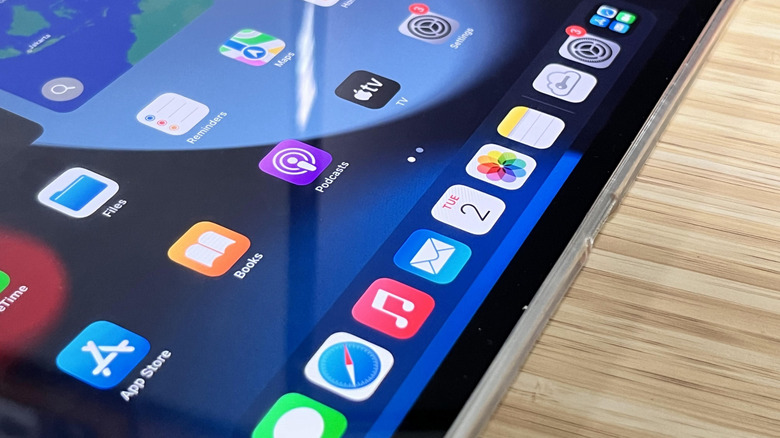
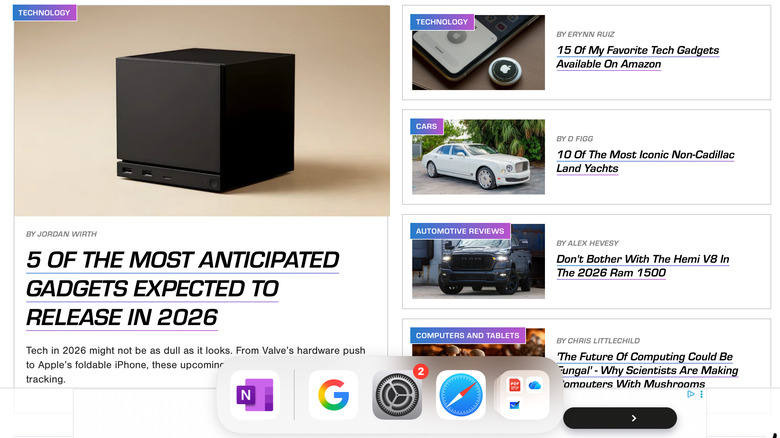
Customizing your iPad's home screen is one way to make it easier to use, but there's another home screen function that's handy, too. The dock, which is the tray section at the bottom of your iPad's home screen, can hold some of your favorite apps for easy access without navigating back to the home screen. When you're in another app, you can swipe up from the bottom edge to pop it open, then select the app that you want.
Rearranging the dock works the same way as the home screen; press on an app icon until it wiggles, then drag it into place. The default for the dock also includes your app library (which you can't remove), so you can find other apps with a couple of taps.
Guided access is another cool feature iPads have that could be helpful for seniors who need more support, and you can turn it on under Settings > Accessibility. For example, my grandfather, who was in his 80s with dementia, had a hard time navigating smart devices. This is just one example, but seniors with some memory conditions might benefit from tools and apps that we often associate with keeping kids safe.
Modify Face ID settings
 Apple
Apple
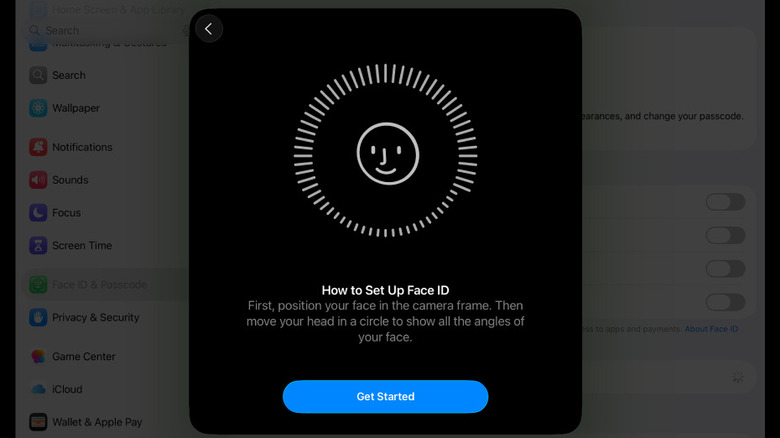
Although I generally find Face ID helpful on my iPhone, I prefer a code for my iPad. However, I have been known to accidentally enter the passcode of my iPhone into my iPad. Many people might find it easier to program Face ID rather than rely on the memorization of a passcode. Plus, iPads have settings specific to the Face ID function that can be helpful for seniors navigating other secure apps.
To update your Face ID settings, go to Settings, then Face ID & Passcode. On this menu, you can choose whether to use Face ID for different functions like unlocking the iPad, using Wallet or Apple Pay, accessing the App Store, and filling in passwords automatically. For seniors who might have trouble with memorizing passwords, Face ID can be a simpler solution. Conversely, turning off Face ID for purchases could help avoid unwanted spending.
Just in case, though, you might want to read up on how to unlock the iPad without a passcode. In the worst-case scenario where Face ID isn't set up and you forget your passcode, there might still be a way to get into your iPad.
Turn off show suggested/recent apps
 Erynn Ruiz/SlashGear
Most folks who use smart devices probably don't need suggestions on which apps to dive back into or what else to download to spend their time on. If you're one of those people — or you know a senior who doesn't need the power of suggestion — Apple offers a way to reduce some of that noise. Under Siri & Search on the Settings menu, you can customize what your iPad shows, from search suggestions to notifications from Apple for its many services and products.
There are plenty of reasons why you may not want to be shown search suggestions or have your recent searches pop up. However, for seniors like my late grandfather, limiting the ability to wander on the internet is largely a good thing. Personally, I dislike receiving suggestions for searches, apps, and products, as I like to think (perhaps mistakenly) that I am in control of my own internet and device experience.
Fortunately, Apple offers many ways to customize search and suggestions, including within set apps. For example, I can turn off suggestions and Shortcuts in the Maps app, so it stops judging my poor navigation skills and need for updated directions.
Set up Family Sharing
 Apple
Apple
For many families, Family Sharing is a helpful way to limit kids' purchases and access on their devices. For the adults in the family, including seniors, there are a few functions that make it a smart addition to your iPad. For one thing, shared purchases are a perk. If the organizer of Family Sharing pays for Apple Music, up to five people can use it. You can also share Apple TV+ access, iCloud services, Apple Arcade access, and more.
For the average family, where seniors might be less comfortable with technology but still use it responsibly, sharing app and service access can be a positive. Plus, sharing things like your location can help families feel more connected even if they live far apart. For families like mine where we had a senior with dementia, it's possible to use the same controls for a child for that adult, with purchasing requests and limits, content controls, and even screen time limits.
Family Sharing also has features for adding a Recovery Contact, someone who can help you log in if you get locked out of your Apple account. Another function is adding a Legacy Contact, so that if you pass away, a designated loved one can access your account and devices. Those functions alone might be worth getting Family Sharing for some families.
Turn on App Store automatic updates
 Erynn Ruiz/SlashGear
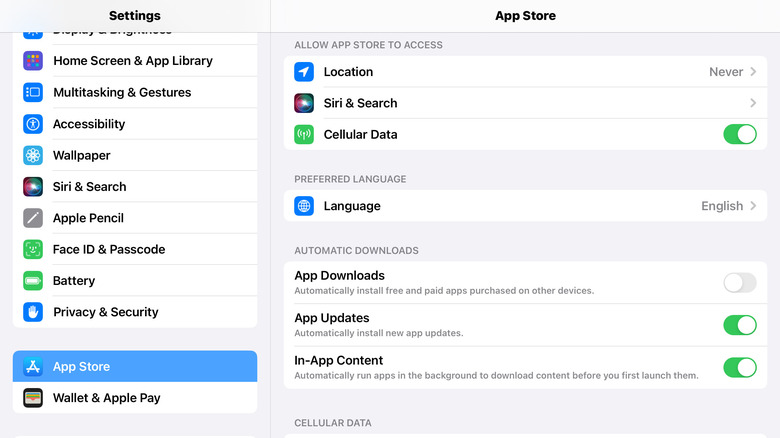
While I prefer to make my own choices about what apps I get or what I search for, I do like having my apps auto-update. Though many seniors might be comfortable navigating app downloads and updates, those who want to set it and forget it have choices. Allowing the App Store to do automatic updates ensures that all your favorite apps will be up to date when you want them and not stall while opening.
To adjust your App Store settings, head over to Settings then select App Store. You can choose to automatically install new updates and download in-app content, too. If your iPad has a cellular data plan, you can customize what downloads on which network. One other potentially helpful function under the automatic downloads section is the ability to automatically download free apps to all the devices on your Apple account. For seniors with both an iPhone and iPad, having your favorite apps on both could be helpful.
Although automatic updates are generally a positive thing, iOS updates can sometimes feel a bit jarring. There are a few settings you might want to change after iPad updates, and it doesn't hurt to run through your preferences and settings all around, too.
Increase the screen timeout period
 Apple
Apple
One of the first settings I ever changed on my iPad was the screen timeout period. Because I often use mine to screencast to a TV to display videos or graphics, I often need to swipe to a new page, scroll on a website, or pause a video. Unlocking the iPad 20 times in one day led to me changing the auto-lock to Never on day one. For many seniors, it might be frustrating to constantly have to sign in and out.
Your habits may vary significantly, but either way, it's important to know that you can adjust the auto-lock on your iPad based on your preferences. Go to Settings, then Display & Brightness, and look for Auto-Lock. Auto-lock starts at 2 minutes and ranges up to 15 minutes, or you can choose to never apply the auto-lock. There's also a toggle for the iPad to wake up when the cover is opened and close when the cover is closed. I don't use a case with a cover, but if you do, this is an important setting to know about.
Turn off app notifications
 Erynn Ruiz/SlashGear
Changing notification settings is one way to ensure that seniors get the alerts they need and not the ones they don't. It can take some time to go through and customize all your app notification settings, but it can avoid frustration later when you get superfluous notifications from apps you hardly use, which buries the ones you want to see.
Specific settings like turning off app notifications and turning off background app refresh can also help preserve the iPad's battery. If you find that your battery is often running down quickly after a full charge, check the app settings to make sure it's not wasting energy. Under Settings, then the specific app you want to change settings for, you'll see the Background App Refresh toggle.
Turn off the background refresh if you'd rather the app didn't keep going in the background when you're not using it. You will want to keep this setting on for things like notes apps that need to sync regularly (I have this setting on for my Microsoft OneNote app), but every app is different — and could be using a different amount of both data and energy.
Use an Apple ID without a credit card
 Apple
Apple
Although there are plenty of free apps for iPads — including many that all ages can enjoy — not every app is free. Unfortunately, some seniors might not pay attention to prices. Or, you might be recognizing some signs of memory or other health problems in your senior loved one. We've all heard about scams that target older folks, thus it might be prudent to lock down their credit cards online.
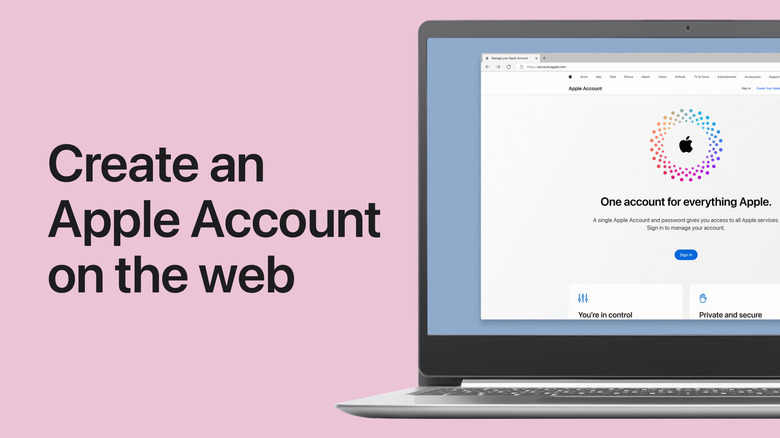
Although Apple's Family Sharing feature is one way to include seniors in a family group with controlled spending, it's also possible to create an Apple ID without attaching a method of payment up front. By leaving off the credit card, you could avoid unintentional purchases (or possibly scams). When you create a new Apple ID, you should be able to check an option for None under the payment method.
For Family Sharing or creating accounts for kids (or a dependent adult), you may still need to verify your own ID or method of payment. Day-to-day, though, ensuring the iPad doesn't have an active payment method could save some headaches and definitely helps save money.
Apply content restrictions
 Erynn Ruiz/SlashGear
The average senior probably does not need content restrictions on their device. However, some seniors may want to avoid certain types of content or just specific websites. Or, you might have a senior loved one who needs some help with avoiding scam websites or inappropriate content.
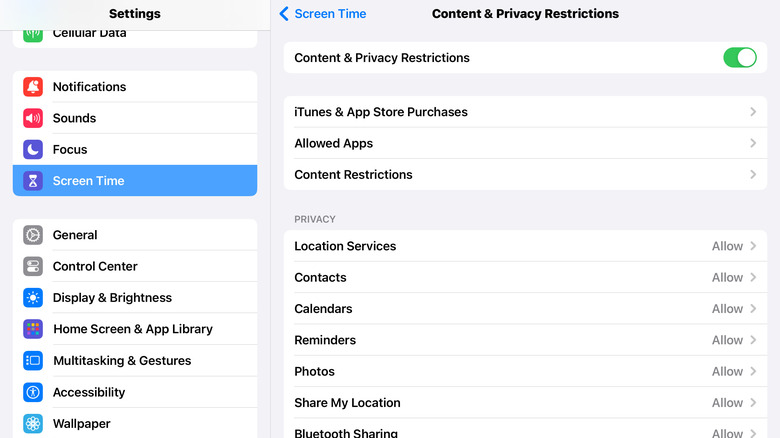
If that's the case, a few settings under Privacy & Security in the Settings menu might come in handy. For starters, you can turn on the toggle to receive a Sensitive Content Warning on certain types of content. Then, navigate to the Screen Time settings under Restrictions. In this section, you can apply a variety of content and privacy restrictions.
You can customize the allowed content in the various store types, from available apps to music, movies, TV, and books. Then, you can also limit web content, Siri functions (there's an option to disallow explicit language), and set restrictions on the Game Center (like private messaging). Whether you're a senior who doesn't want to see X-rated content, or you have a senior loved one who would benefit from those filters, the settings are highly customizable to suit.